One workspace. One Windows device. Start in browser Mech, or let Claude Code or Codex use OpalSpan Agent CLI for work you authorize.
Complete the shared steps 1–3 once, then choose how to work. Already connected? Continue with either route at step 4.
Shared start
Sign up, create a workspace, and enroll Windows
1
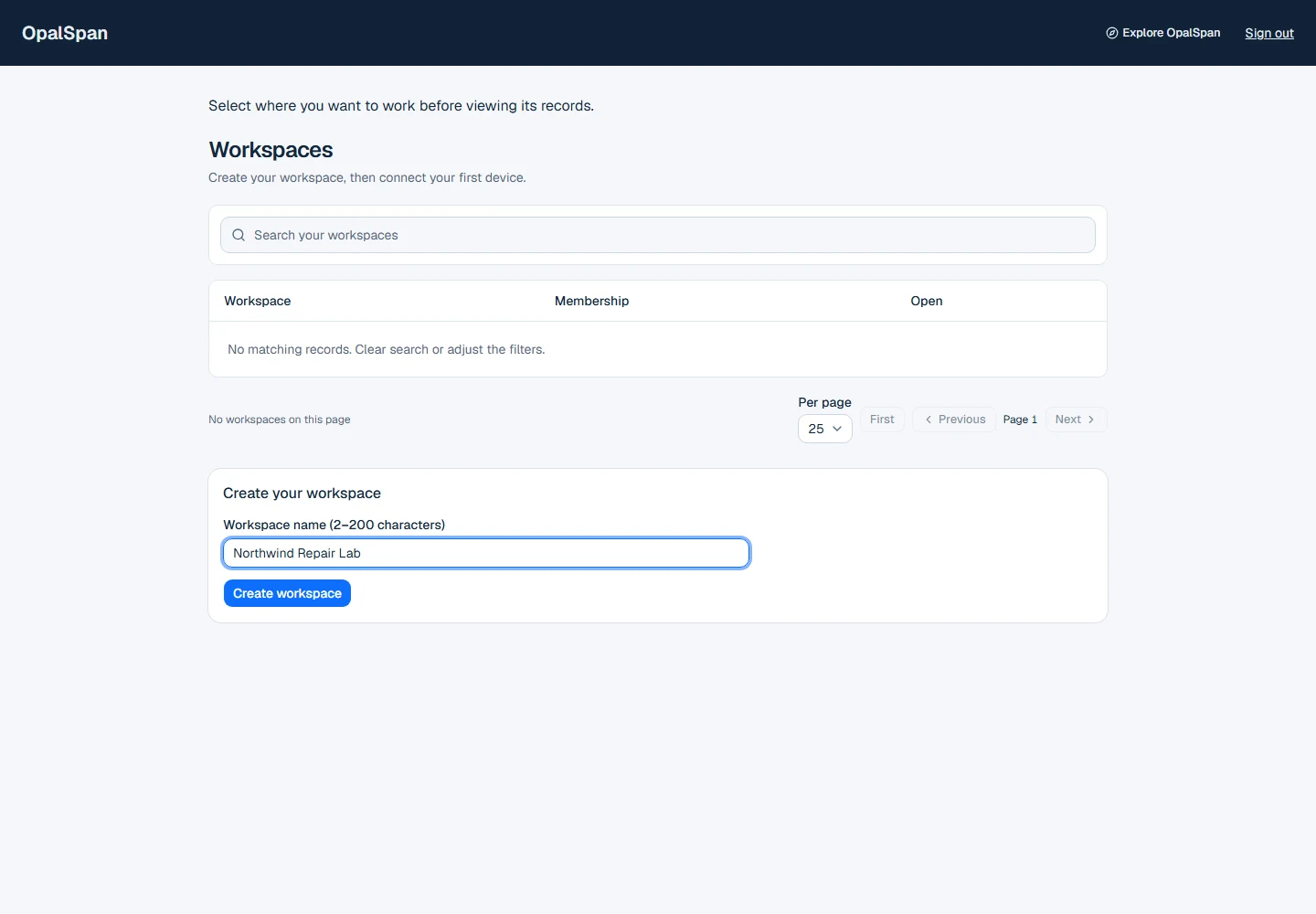
Create your workspace
Sign up, or open a workspace you already belong to. It holds your devices, conversations and optional Cases.
Enter a recognizable Workspace name (2–200 characters), then Create workspace. You become its first administrator.
Already a member? Choose Open workspace instead of creating another account or workspace.
Invited? Open your private link, sign in with the invited account and verify its email if asked. On Confirm workspace invitation, check Workspace, Invited email and Effective access, then Accept invitation.
If Invitation link needed appears after switching browsers, reopen the original link where you are signed in. Ask the inviter to replace an expired or revoked link. Matching emails do not merge accounts.
Check: The right workspace is selected and your membership is shown.
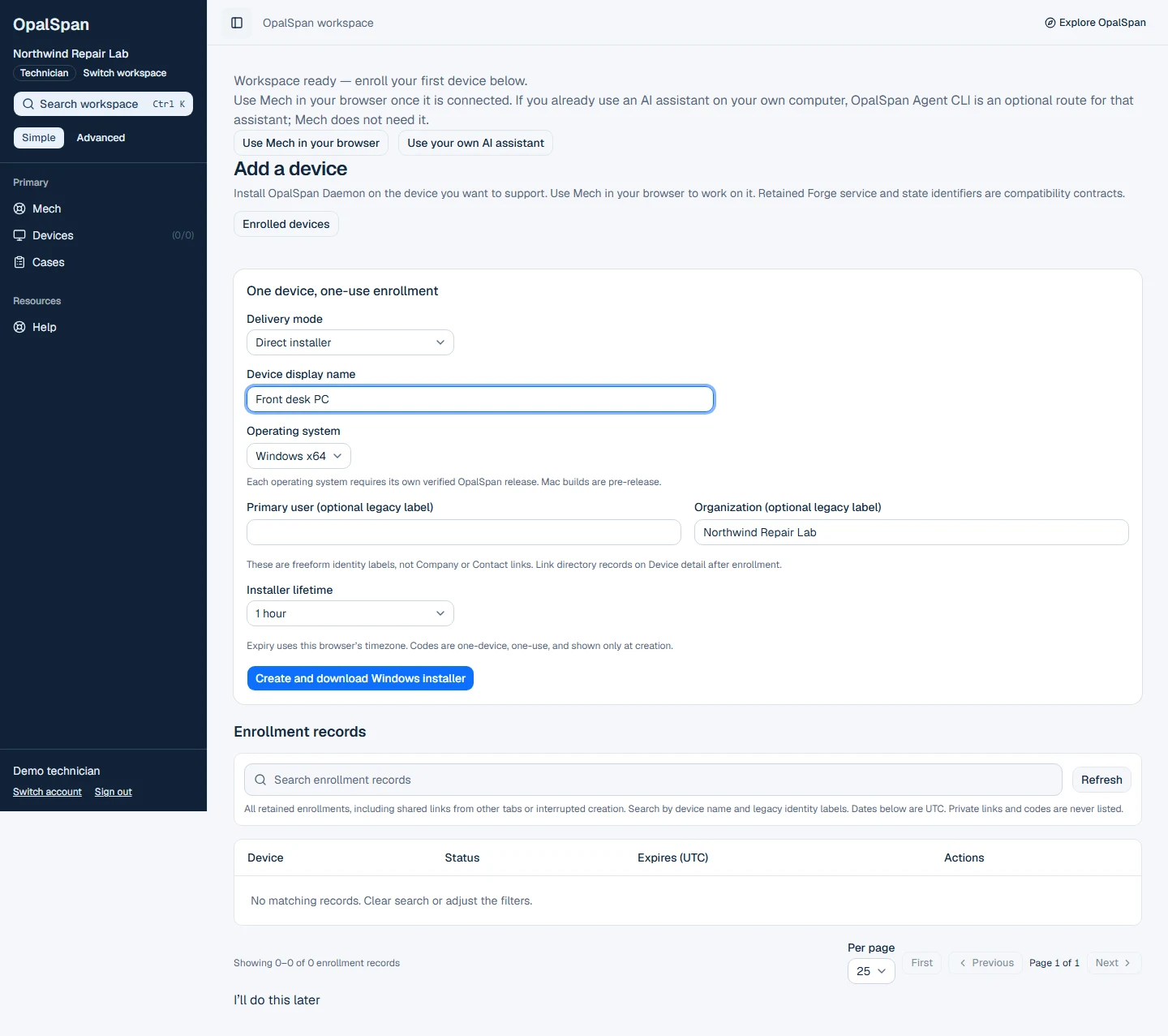
From the first-device page, or Devices → Add a device, select Direct installer and Windows x64.
You need workspace enrollment permission as well as Windows local administrator approval. If Add a device is missing or Enrollment unavailable appears, confirm the workspace and ask its administrator to check your access.
Enter Device display name, choose an Installer lifetime long enough for setup, then Create and download Windows installer.
Keep the one-use installer private. Downloading it does not enroll the device.
OpalSpan Daemon provides persistent access on this device. Ending a conversation does not uninstall it.
Check: You have the signed installer for your Windows device. It is downloaded, not installed yet.
Fictional Windows setup example. Choose Direct installer and Windows x64, enter Device display name, then Create and download Windows installer.Open full-size image (new tab)Add a device
3
Wait for the device to come online
Run it on the authorized Windows device and approve the local administrator prompt. Return to Devices and look for Online.
Run from a new empty folder with the original filename. If the browser adds (1), remove only that suffix without overwriting another installer.
If it stays offline, check enrollment progress and the installer result before creating another. Consumed does not automatically mean installation failed.
Check: Your intended device appears Online in this workspace. That means connected, not repaired; a reported version is status information, not a job result.
Mech runs in your browser without Agent CLI. Open Mech, then Start a conversation or New conversation.
Check usable AI credits and the model/reasoning settings. New conversations default to GPT-6.1 Sol at low reasoning.
Mech work can use OpalSpan AI credits. If credits are unavailable or insufficient, refresh the balance and open Usage details. Admins can use Add credits when shown or Billing; other members ask their workspace Admin. The shown balance and terms govern use.
Check: You are in the intended workspace with the model and credit status visible.
Select the device and ask a first read-only question
Open Context in the idle conversation and choose the connected device before your first question.
Look for You control this conversation. Use Claim control when offered before editing or sending; an active conversation owned by another technician stays theirs.
Under Permission scope, choose Selected devices, add the computer to Permitted devices, then Save scope.
Add it to Focused devices, then Save focused context. A Case is optional. Return to Chat and Send the read-only question below.
First question to try
Inspect read-only diagnostics on this selected Windows device. Summarize the Windows version, available disk space and any recent Windows Update errors you can verify. Do not install, restart, change settings or delete anything. Distinguish observations from possible causes and suggest the next useful question.
Check: The same authorized device is permitted and focused before Send. These choices do not grant new access.
6
Review the result
Read what Mech observed, what it suggests and what remains uncertain. A suggested change is not a completed one.
Expand a reasoning summary if useful. Its title is what Mech is considering; tool results and observations tell you what actually happened.
If Mech asks, choose an option or Write your own answer → Submit answer for the intended device. An answer is not approval for a change. End active work through Conversation actions → Stop conversation.
Waiting for model capacity resumes automatically. If interrupted, use Continue when offered; it checks the outcome. Use Refresh page when requested. Do not resend uncertain work.
Optional: Cases → open an authorized case → Internal notes → Add note. Choose observation or inference under Evidence basis and Save internal note; leave secrets and unnecessary customer data out.
For a handback, Customer drafts → Create customer draft. Check the recipient, subject and full message and mark its saved revision reviewed before Copy reviewed text or Download reviewed text. Edits need review again. OpalSpan does not send it; no draft is needed for your first job.
Check: You have findings and a useful next question, not a guaranteed repair.
Explore the current Mech example
The same Mech interface, with a fictional Windows startup investigation and scripted findings. It illustrates the controls, not the exact first question above. This example does not use AI credits or work on a real device; your actual job still needs usable credits and authorized device access.
External assistant route
Use Agent CLI with Claude Code or Codex
4
Install OpalSpan Agent CLI
Use your Claude Code or Codex workstation. Its account, setup and usage costs are separate from OpalSpan.
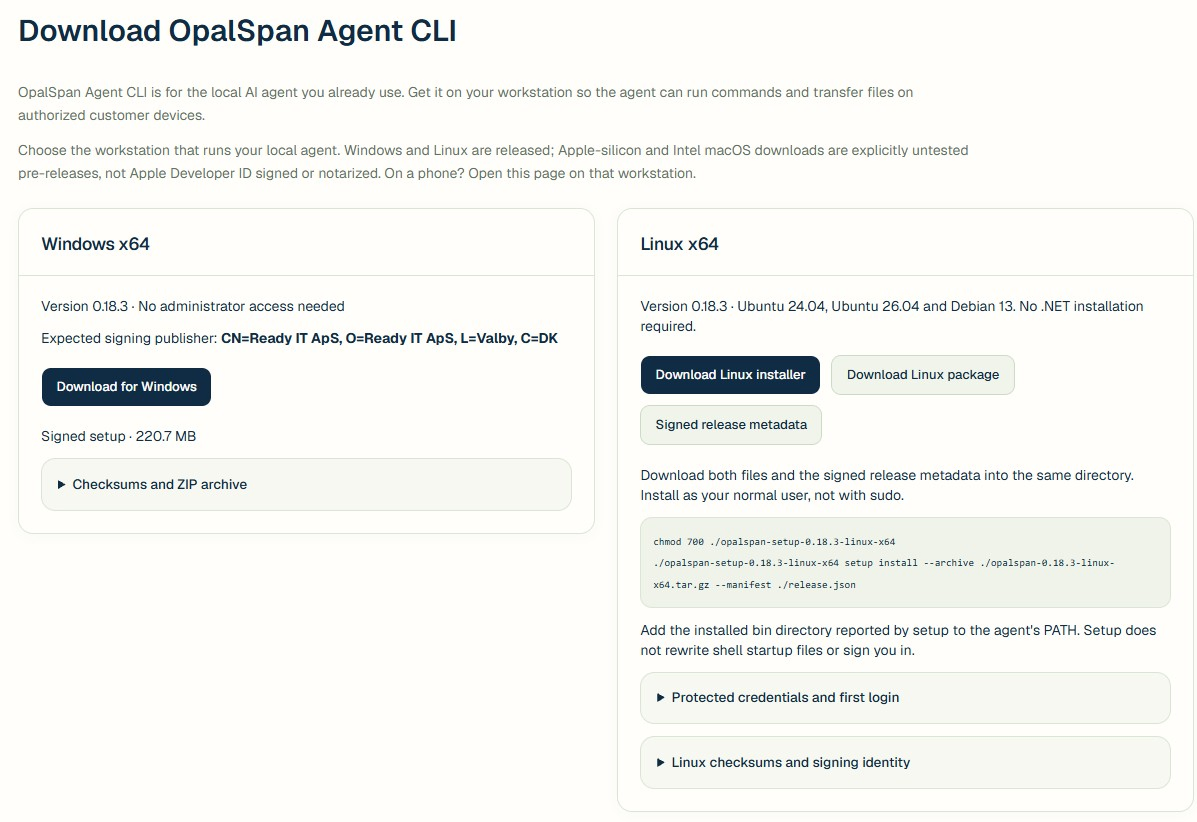
Download the current signed Agent CLI for that workstation and follow its displayed setup steps.
Agent CLI belongs on the assistant workstation, not the device you are supporting. Reuse the same enrolled device; browser Mech does not need the CLI.
Check: Agent CLI is installed on the assistant workstation; your enrolled Windows device is unchanged.
Captured 1 October 2026: Windows/Linux 0.18.3. On your assistant workstation, choose the current download and check Ready IT ApS as the Windows publisher.Open full-size image (new tab)Get Agent CLI
5
Authorize the workspace
Sign in as yourself. Your assistant uses only the workspace and device access you have.
Ask the assistant to run opalspan login, then complete the browser authorization yourself.
Ask it to run opalspan whoami, opalspan doctor and opalspan devices list. Check the workspace and exact enrolled device before it connects; no new enrollment is needed.
Check: The assistant shows the right account, workspace and authorized device. Signing in alone does not create membership or device access.
6
Perform and close the authorized task
Give the assistant the same read-only task. Review its findings, then ask it to disconnect. OpalSpan device-work and the assistant's usage terms still apply.
First question to try
Use OpalSpan Agent CLI to inspect read-only diagnostics on the selected Windows device. Confirm its identity, summarize the observed Windows version, available disk space and recent Windows Update errors, and distinguish observations from possible causes. Do not install, restart, change settings or delete anything. Report the next useful question and disconnect when finished.
Check: You have reviewed observations, a next question and a closed assistant connection.
If setup pauses
Workspace or access is unclear
Check the selected workspace and your membership. Look for an existing workspace before creating another; signing in alone does not grant access.
The device is not Online yet
Check enrollment progress and the installer result on the intended Windows device. Keep its original filename. Use the replacement path for an expired or revoked installer; a download alone is not setup.
Mech cannot start the job
Check conversation control, device scope and usable AI credits. Refresh the balance and open Usage details. An Admin can use Billing or Add credits. Keep your draft and the error; do not resend uncertain work.